
User Guide
Learn how to use fastbreak with this guide.
1. Viewing visualizations

How do I use this?
Browse the main screen to see all available charts for your selected sport. Tap any chart to view the full interactive version. On the chart screen, tap the info icon (ℹ) in the top-right corner to see a description of what the chart displays.
What does this do?
Fastbreak's core functionality is viewing different types of statistical visualizations. Each chart includes an info button that provides context about the metrics being displayed, helping you understand what the data represents and how to interpret it.
Why is this useful?
With dozens of different charts covering all aspects of each sport, fastbreak helps you quickly find the exact data you're looking for. The info descriptions ensure you understand each metric, making it easier to discover insights and compare stats meaningfully.
2. Pinch to Zoom, Drag to pan

How do I use this?
Use two fingers to pinch in or out on any chart to zoom. Once zoomed, drag with one finger to pan around and explore different areas of the visualization.
What does this do?
Provides intuitive touch gestures for exploring detailed charts on mobile devices. Pinch gestures control zoom level, while drag gestures allow you to navigate around the zoomed view.
Why is this useful?
When charts contain lots of data points or detailed information, zooming and panning lets you focus on specific areas of interest without losing context. This is especially useful for time-series data or crowded visualizations.
3. Pinning teams

How do I use this?
Select the menu icon and select Settings. Tap the Manage Teams button and select the filter icon to open the team selector. Select your favorite teams to pin them. Pinned teams created a badge in each chart to easily highlight each pinned team for that chart.
What does this do?
Allows you to select and highlight specific teams within each chart. Your pinned teams are saved and persist across sessions, so you don't need to select them every time.
Why is this useful?
If you follow specific teams, pinning them makes it much easier to find and highlight their stats within a chart. Easy selection and highlighting helps you quickly identify your teams' performance in any visualization.
4. Highlighting data points

How do I use this?
Tap on any data point in the list below the chart to highlight it on the chart. The selected point will be emphasized while other points fade slightly, making it easier to focus on specific values.
What does this do?
Provides an interactive way to explore individual data points in charts. When you tap a point, a tooltip or detail view appears showing the exact values, team name, and any relevant contextual information.
Why is this useful?
Charts often contain many overlapping or closely-spaced data points. Highlighting lets you precisely examine individual values without confusion, and the detailed view provides context that might not fit in the main chart.
5. Offline support

How do I use this?
Tap the refresh button in the top-right corner of the header to update all charts with the latest data. Alternatively, open Settings from the side menu and tap 'Refresh Registry' to manually sync the chart data. Visual indicators will show when charts are being updated.
What does this do?
Enables the mobile apps to work completely offline once charts are downloaded initially. When you refresh, the app downloads and caches all chart data locally on your device. The refresh button provides visual feedback during the update process, showing loading states and success indicators.
Why is this useful?
Once you've refreshed the data, you can view all charts without an internet connection, making fastbreak perfect for situations with poor connectivity or when you want to save mobile data. The visual indicators ensure you always know when you're viewing the most current data versus cached data, giving you confidence in the information you're seeing.
6. Matchup Worksheets

How do I use this?
Open the Matchup Worksheets from the NFL or NBA charts list. Scroll through the matchup badges at the top to browse different games, then tap a matchup to select it. View detailed team statistics in the Stats tab, or switch to the Charts tab to see visual comparisons. In the Charts tab, use the week range badges to filter the scatter plot by specific timeframes.
What does this do?
Provides comprehensive head-to-head analysis for NFL and NBA matchups throughout the season. The worksheet combines team statistics, performance charts, and historical data in one interactive view. For the NFL, you can explore cumulative EPA trends, weekly offensive vs defensive performance, key player stats, head-to-head records, and common opponent comparisons for each matchup. For the NBA, you can explore offensive and defensive net rating over time and one month trends
Why is this useful?
The Matchup Worksheet consolidates all the information you need to analyze any week's games in one place. By combining stats and charts with interactive filtering, you can quickly compare teams across multiple dimensions and identify key factors that might determine the outcome. The ability to switch between matchups and timeframes makes it easy to analyze multiple games and spot trends throughout the season.
7. Sharing Charts and Worksheets

How do I use this?
Look for the red share button (FAB) in the bottom-right corner on various charts and worksheets throughout the app. Tap the share button to capture the current view. The native share sheet will appear with a preview of the image. Select your preferred sharing method (text message, social media, email, etc.) to share the image with others. The demo shows sharing a matchup worksheet, but you'll find the share button on other visualizations as well.
What does this do?
Generates a high-resolution image of the chart or worksheet you're viewing and opens your device's native share dialog with a preview. The shared image captures all the data currently displayed, including statistics, charts, and any applied filters. The image is automatically saved to your device and includes attribution to the data source.
Why is this useful?
Sharing your analysis is essential for discussing games with friends, posting insights on social media, or saving your own research for reference. The preview in the share dialog lets you confirm the image looks correct before sharing. The high-quality exported images capture all the important details in a shareable format, making it easy to communicate your findings without needing multiple screenshots or manual formatting.
8. Daily Topics

How do I use this?
Navigate to the Topics screen from the main menu. Scroll through the daily topics to see statistically grounded insights about your favorite sports. Each topic contains data points that link directly to relevant charts - tap any underlined data point to jump to that visualization.
What does this do?
Topics provides summaries and insights about what's happening across different sports. The content is generated everyday at 6am ET using Google's Gemini with Grounded Search, which ensures factual accuracy by verifying information against Google Search results. Each topic highlights key statistics and trends, with direct links to the underlying charts and visualizations.
Why is this useful?
Topics gives you a daily sports briefing without ads, clickbait, or fluff. Every insight is grounded in actual statistics from the app's charts and verified against Google Search results for factual accuracy. Instead of manually searching through dozens of charts, Topics surfaces the most interesting and relevant insights each day. The linked data points let you quickly dive deeper into any statistic that catches your attention.
9. Bracket

How do I use this?
As each major sport enters the post season, a bracket visualization will be available in the given sport's screen. The demo shows the 2026 March Madness bracket. Drag across the screen to freely explore the bracket. Pinch to zoom in on a specific section or zoom out to see the entire bracket. Tap any matchup node to instantly view a detailed comparison of the two teams. Use the navigation panel at the top to quickly jump between regions and the Final Four. Rotate your phone to switch to landscape mode for a wider view while retaining all functionality.
What does this do?
Provides a fully interactive NCAA tournament bracket optimized for mobile devices. The bracket renders every matchup node at every zoom level, so you always have a clear picture of the tournament structure regardless of how far you've zoomed in or out. Tapping a matchup node immediately displays a compact comparison with a high data-to-pixel ratio — no extra loading or API calls required. The navigation panel lets you jump between regions and the Final Four without manually scrolling. Landscape mode is fully supported with a smooth transition from portrait.
Why is this useful?
Major sports apps struggle with bracket visualizations on small screens (weird animations, no zoom, no landscape mode, and matchup comparisons that require extra loading). Fastbreak's bracket checks every box: smooth pan and zoom, instant matchup comparisons with no loading, intuitive region navigation, and full landscape support. Read our bracket comparison blog post to see how Fastbreak stacks up against Google, CBS Sports, NCAA, Yahoo, and more.
10. Team Report Cards
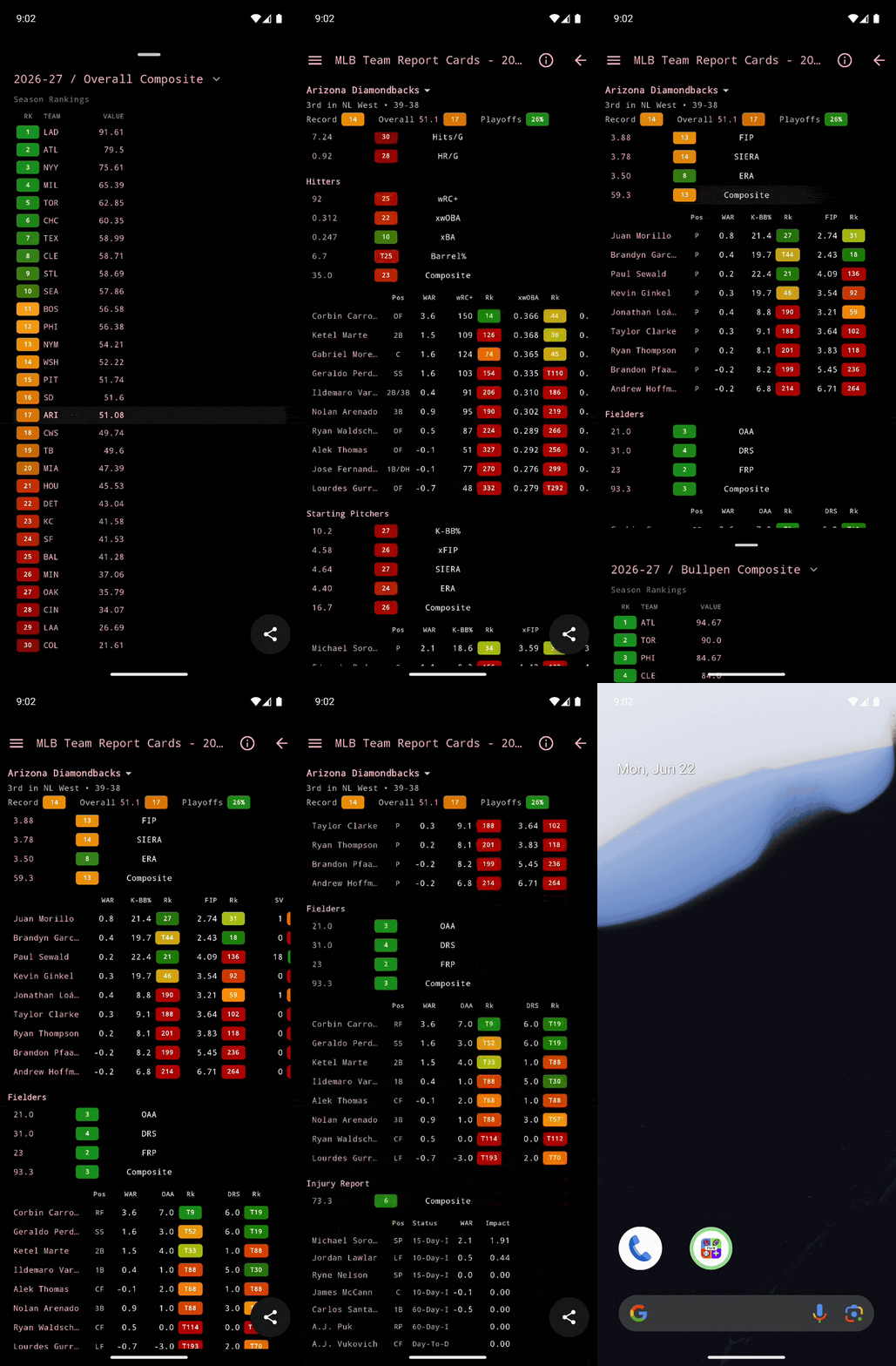
How do I use this?
Open the MLB tab and tap the Team Report Card chart. Scroll through categories like Recent Trend, Hitters, Starters, Relievers, Fielders, and Injuries. Tap Overall or Playoffs to open league-wide ranking sheets. Tap Composite on a category to see how teams rank across that group's stats. Swipe horizontally on player tables to browse additional columns. Use the team picker at the top to switch teams and compare rosters side by side.
What does this do?
The MLB Team Report Card is a season-long dashboard for one team at a time. It combines recent form, playoff odds, and category breakdowns for hitting, pitching, defense, and injuries. Each stat shows the value plus a color-coded league rank, and ranking sheets let you see where every team stands for overall composite scores, playoff chances, or individual metrics.
Why is this useful?
Instead of jumping between separate leaderboards and roster pages, the report card puts a team's full statistical profile in one scrollable view. Rank badges make it easy to spot strengths and weaknesses at a glance, and switching teams lets you quickly compare contenders without losing your place in the worksheet.